02. Getting Started
Getting Started
The first step is to get an API Key from NASA. Follow the instructions as listed.
- Got to the following URL - https://api.nasa.gov/ and scroll down a little and you are going to see this:
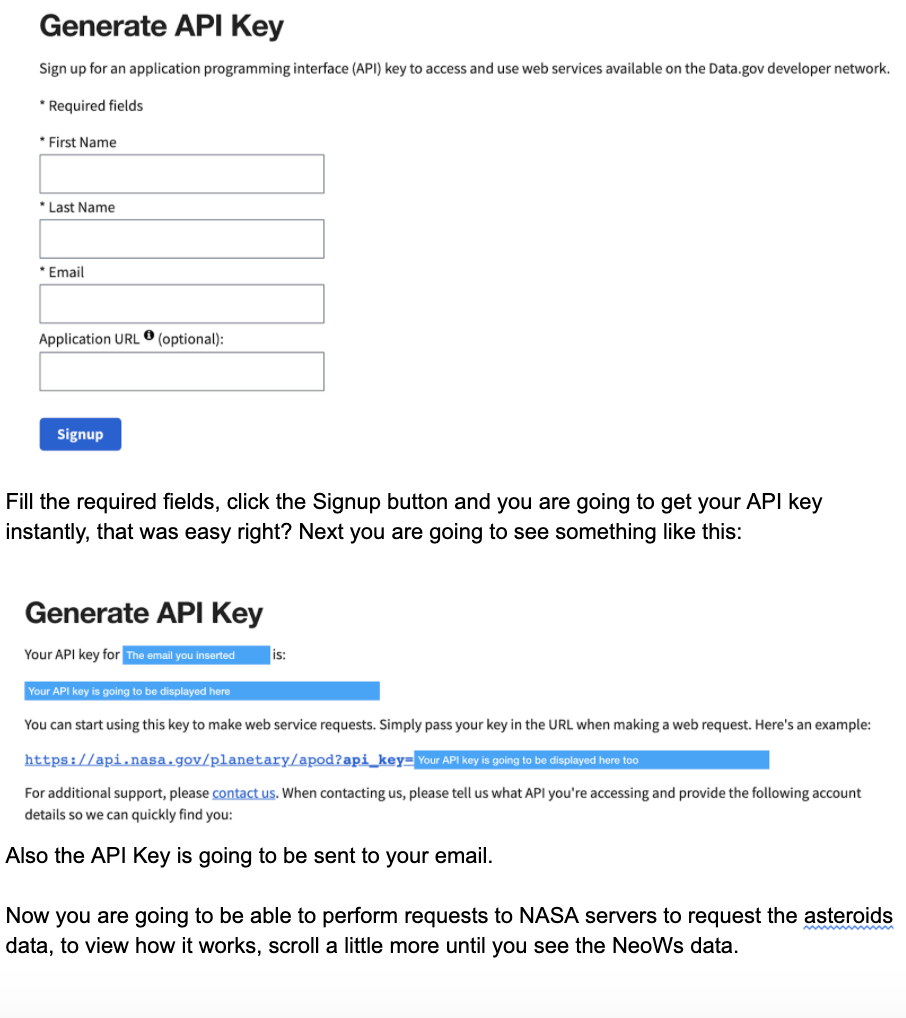
Fill the required fields, click the Signup button and you will get a API key (the API Key is also going to be sent to your email ).
You will use the API key to send requests to NASA servers to get data about asteroids - to view how it works, scroll down a little more until you see the NeoWs data.
Next you are going to see something like this:
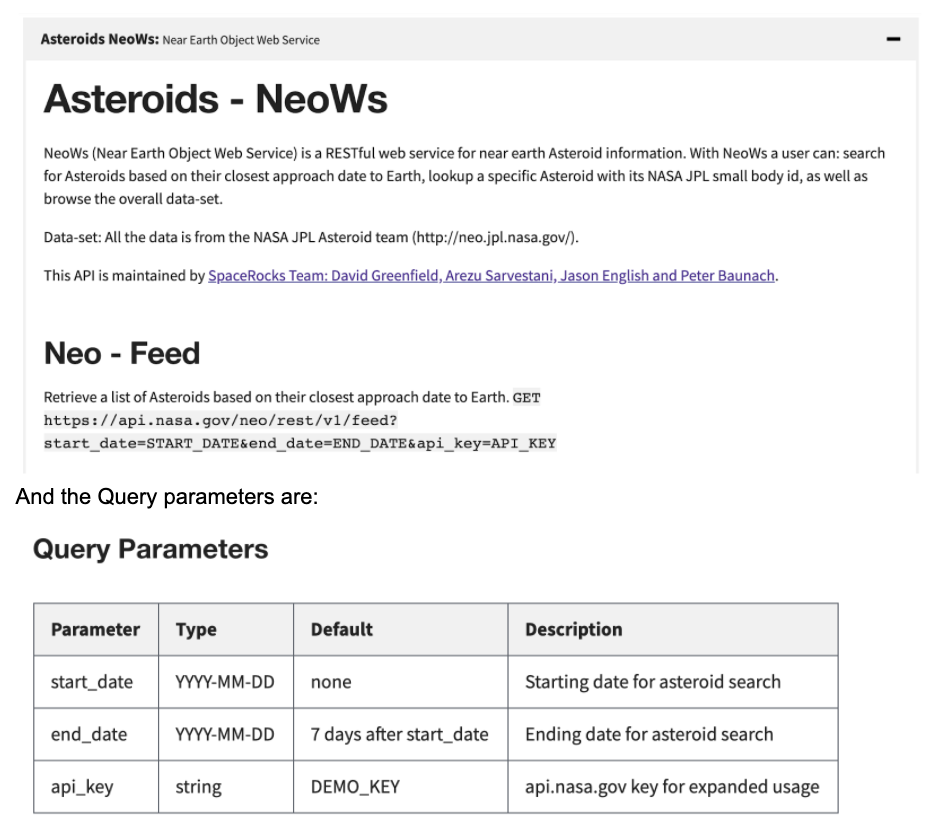
- You are now ready to build a query string with the API like the following, using the API_KEY, START_DATE and END_DATE parameters.
https://api.nasa.gov/neo/rest/v1/feed?start_date=START_DATE&end_date=END_DATE&api_key=YOUR_API_KEY. For eg., the following is the demo key that you can try out
https://api.nasa.gov/neo/rest/v1/feed?start_date=2015-09-07&end_date=2015-09-08&api_key=DEMO_KEY
The response will be a JSON object like the following:
 {
  "links": {
    "next": "http://www.neowsapp.com/rest/v1/feed?start_date=2015-09-08&end_date=2015-09-09&detailed=false&api_key=DEMO_KEY",
    "prev": "http://www.neowsapp.com/rest/v1/feed?start_date=2015-09-06&end_date=2015-09-07&detailed=false&api_key=DEMO_KEY",
    "self": "http://www.neowsapp.com/rest/v1/feed?start_date=2015-09-07&end_date=2015-09-08&detailed=false&api_key=DEMO_KEY"
  },
  "element_count": 24,
  "near_earth_objects": {
    "2015-09-08": [
      {
        "links": {
          "self": "http://www.neowsapp.com/rest/v1/neo/3726710?api_key=DEMO_KEY"
        },
        "id": "3726710",
        "neo_reference_id": "3726710",
        "name": "(2015 RC)",
        "nasa_jpl_url": "http://ssd.jpl.nasa.gov/sbdb.cgi?sstr=3726710",
        "absolute_magnitude_h": 24.3,
        "estimated_diameter": {
          "kilometers": {
            "estimated_diameter_min": 0.0366906138,
            "estimated_diameter_max": 0.0820427065
          },
          "meters": {
            "estimated_diameter_min": 36.6906137531,
            "estimated_diameter_max": 82.0427064882
          },
          "miles": {
            "estimated_diameter_min": 0.0227984834,
            "estimated_diameter_max": 0.0509789586
          },
          "feet": {
            "estimated_diameter_min": 120.3760332259,
            "estimated_diameter_max": 269.1689931548
          }
        },
        "is_potentially_hazardous_asteroid": false,
        "close_approach_data": [
          {
            "close_approach_date": "2015-09-08",
            "close_approach_date_full": "2015-Sep-08 09:45",
            "epoch_date_close_approach": 1441705500000,
            "relative_velocity": {
              "kilometers_per_second": "19.4850295284",
              "kilometers_per_hour": "70146.106302123",
              "miles_per_hour": "43586.0625520053"
            },
            "miss_distance": {
              "astronomical": "0.0269230459",
              "lunar": "10.4730648551",
              "kilometers": "4027630.320552233",
              "miles": "2502653.4316094954"
            },
            "orbiting_body": "Earth"
          }
        ],
        "is_sentry_object": false
      },
...
In the above JSON object, the asteroids are inside near_earth_objects key and all the asteroids for a given date are all listed there.
For this project you will use the following fields:
id(Not for displaying but for using in db)absolute_magnitudeestimated_diameter_max(Kilometers)is_potentially_hazardous_asteroidclose_approach_data->relative_velocity->kilometers_per_secondclose_approach_data->miss_distance->astronomical
NASA image of the day
Finally, to make the app more look more interesting, we are going to display the NASA’s image of the day in Main Screen top, this is an simple image we can get from the next link:
https://api.nasa.gov/planetary/apod?api_key=YOUR_API_KEY
This is also going to return a simple JSON object of which you just need the “url” key, example:
url: https://apod.nasa.gov/apod/image/2001/STSCI-H-p2006a-h-1024x614.jpgmedia_type: The image of the day could be an image or a video, we are using only the image, to know what media type is you have to check themedia_typefield, if this value is “image” you are going to download and use the image, if it’s video you are going to ignore it.title: The title of the picture, this is going to be used as content description of the image for Talk back.